---
agentTools:
projectIndex: https://docs-campaign-for-contact-centers.webexcampaign.com/llms.txt
---
# Contact modes
You can create different contact modes in Webex Campaign Management to attribute a particular phone number as a Home or Office numbers.
[block:image]
{
"images": [
{
"image": [
"https://files.readme.io/def35c9112a0cf23f66c85590f0328c2af7073b742fb0e8c9849fa5032de9b09-image.png",
null,
""
],
"align": "center",
"border": true
}
]
}
[/block]
## Create contact mode
Follow these steps to create a contact mode:
1. Navigate to the **Campaign data config** section and click **Contact modes**. The **Contact modes** screen is displayed.
2. Click **Create contact mode** and enter details in the following fields:
1. **Contact mode name**: Enter a name for the contact mode such as Home or Office.
2. **Description**: Enter a meaningful description.
3. **Minimum length**: Enter the minimum required length for the phone number.
4. **Maximum length**: Enter the maximum required length for the phone number.
[block:image]
{
"images": [
{
"image": [
"https://files.readme.io/f6cbd82b23b1e16aae0fa495907fffa850f9b90fac1ab541ea4ed42cc7a4e989-image.png",
null,
""
],
"align": "center",
"sizing": "400px",
"border": true
}
]
}
[/block]
3. Click **Create contact mode**.
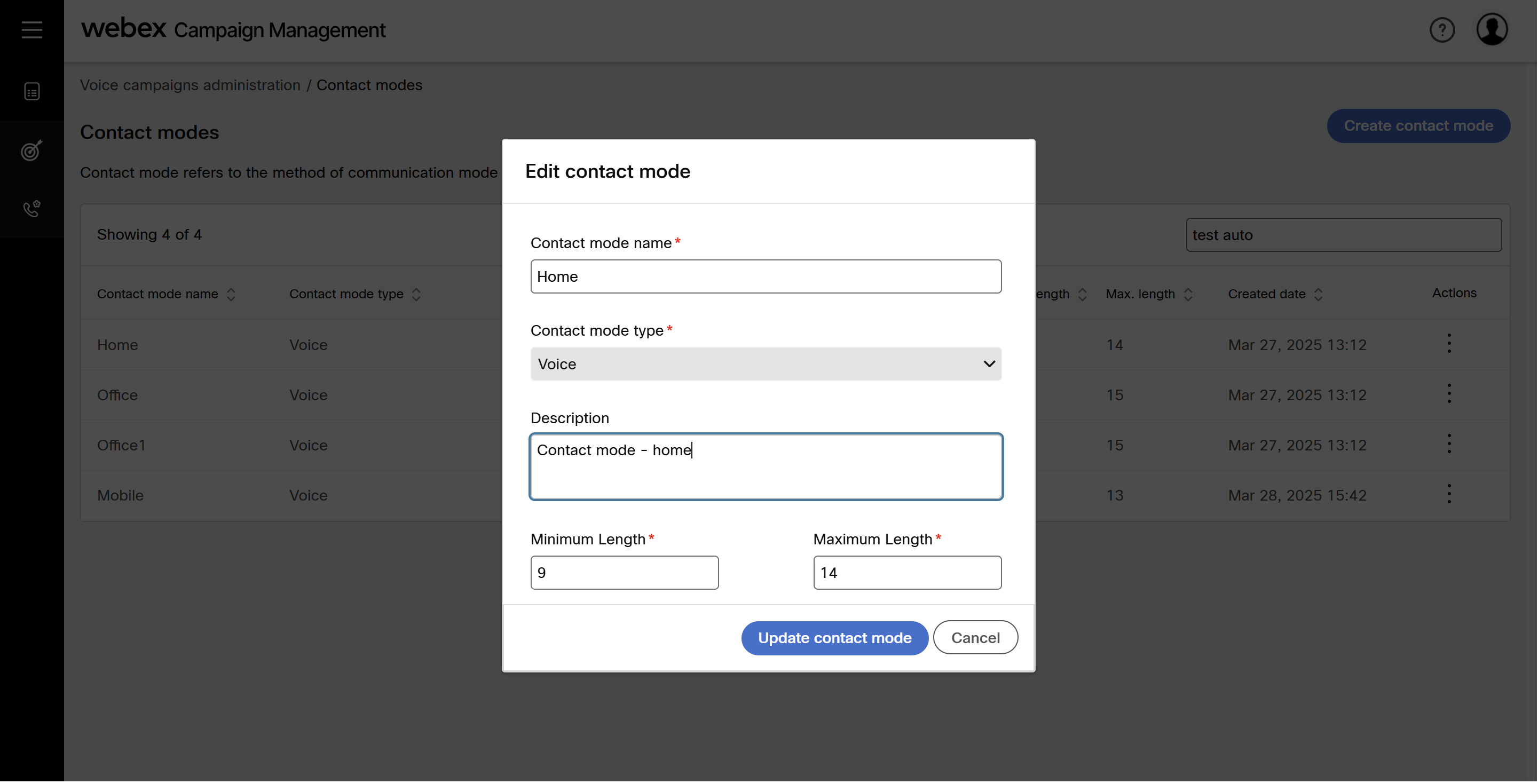
## Edit contact mode
Follow these steps to edit a contact mode:
1. Navigate to the **Campaign data config** section and click **Contact modes**. The **Contact modes** screen is displayed. Click the ellipses icon of the required contact mode and click **Edit**.
[block:image]
{
"images": [
{
"image": [
"https://files.readme.io/52b5c00adb061c624f87e266366af033dea2b66d1832bbba17ca6c3fafaa58f7-image.png",
null,
""
],
"align": "center",
"border": true
}
]
}
[/block]
2. Make necessary amendments and click **Update contact mode**.
## Delete contact mode
Follow these steps to delete a contact mode:
1. Navigate to the **Campaign data config** section and click **Contact modes**. The **Contact modes** screen is displayed. Click the ellipsis icon for the required contact mode, then click **Delete**.
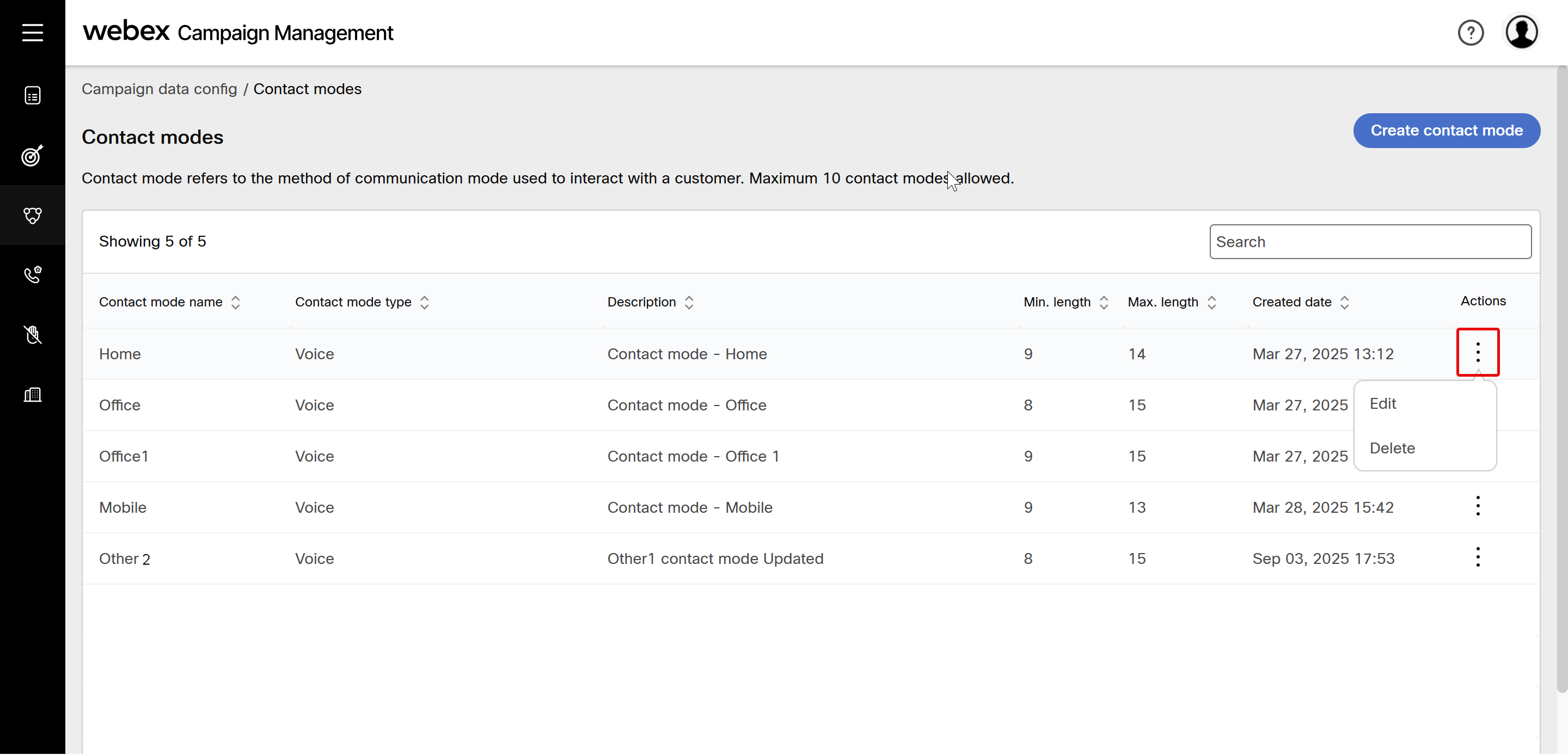
2. A confirmation message appears.
> 📘
>
> You cannot delete a contact mode if it is associated with at least one field mapping.