
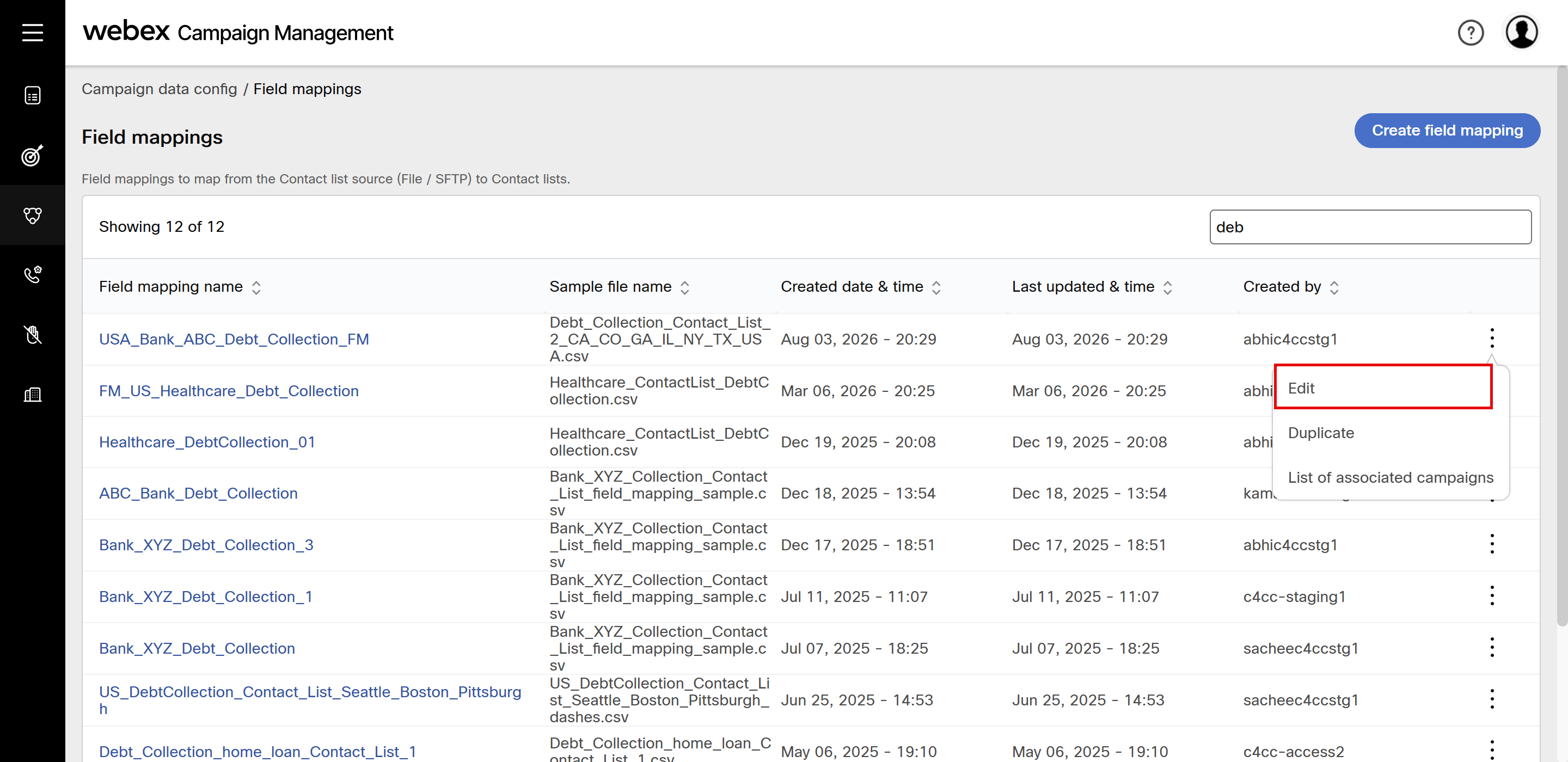
Edit Field Mapping
Before updating field mappings with additional attributes, ensure that the corresponding changes have already been implemented in the application that invokes the Create Contacts API.
The edit field mapping allows you flexibility when managing field mappings for campaigns that are no longer actively running. You can reuse the existing field mappings by adding new headers while keeping previous mappings stable for existing campaign data and contact search behavior.
Field mappings can be edited when all associated campaigns are in one of the allowed statuses:
- Ended
- Completed
- Paused
You cannot edit a field mapping that is associated with a campaign whose status is in Draft, Active or Running.
Adding New Headers
In Step 1 of field mapping, you can upload a new sample file with additional headers. The new sample file must include all the existing field mapping headers. You can add new headers, but you cannot remove the old ones. The new file headers need not be in the same order as before.
An error message will be displayed, if the uploaded sample file is missing any previous headers.
Field Mapping Updates - Allowed Scenarios
| # | Allowed Change | Manual File Upload | SFTP | Via API |
|---|---|---|---|---|
| 1 | Add new contact attributes/headers | Allowed | Allowed | Allowed |
| 2 | Change the separator (pipe ↔ comma) | Allowed | Allowed | Allowed |
| 3 | Change how the call recipient’s timezone is inferred, such as by phone area code, postal/ZIP code, or campaign timezone | Allowed | Allowed | Allowed |
Field Mapping Update - Not Allowed Scenarios
| # | Change Category | Description | Manual File Upload | SFTP | Via API |
|---|---|---|---|---|---|
| 1 | Remove existing attributes | Removing any existing file header, field mapping row, or data-type row is blocked. | Not Allowed | Not Allowed | Not Allowed |
| 2 | Change contact modes | Contact mode mappings cannot be added, removed, or remapped. | Not Allowed | Not Allowed | Not Allowed |
| 3 | Change country and phone number format | countryKey, countryCode, and phoneFormat cannot be changed. | Not Allowed | Not Allowed | Not Allowed |
| 4 | Change the data type of existing headers | The data type, encryption flag, or date format of an existing header cannot be changed. | Not Allowed | Not Allowed | Not Allowed |
| 5 | Change global variable mappings | Existing global-variable-to-header mappings cannot be changed or removed. | Not Allowed | Not Allowed | Not Allowed |
| 6 | Duplicate headers by case only | Headers that differ only by letter case cannot be added or renamed.. For example, existing header FirstName and new header firstname. | Not Allowed | Not Allowed | Not Allowed |
| 7 | Change the case of existing attributes | The letter case of an existing attribute cannot be changed, for example, FirstName to firstname. | Not Allowed | Not Allowed | Not Allowed |
Manage Contact List - Field Mapping Header Display After Field Mapping Update
| Scenario | Manual File Upload | SFTP | Via API |
|---|---|---|---|
| Existing contact lists (created before Field Mapping update) | Display original Field Mapping headers captured at upload time | Display original Field Mapping headers captured at upload time | New FM headers appended at the end of existing header snapshot for Active Contact lists, For Expired Contact lists display original FM headers captured at upload time |
| New contact lists (created after Field Mapping update) | Display updated Field Mapping headers from current field mapping | Display updated Field Mapping headers from current field mapping | Display updated Field Mapping headers from current field mapping |
| Manage Contact List download files by clicking on counts | Uses the header snapshot stored on the contact list row at processing time | Same as Manual File Upload | Uses the synced header snapshot (existing headers + appended new ones for paused-campaign API lists). |
When you download contacts from the Manage contact list screen, the contact list is downloaded in pipe-delimited text format, even if the original file was a CSV.
. .
Updated 3 months ago